Are you trying to figure out the easiest way to convert Excel files to vCard format? This blog post has instructions on how to quickly convert an Excel file to the VCF or vCard formats.
The process of adding and managing contacts in Excel is hard, and there is a risk of error and contact mismatch. It is preferable to keep your contacts in vCard format because it is more convenient and more compatible. However, you require an MS Excel application to view the contacts in an Excel sheet. Moving Excel contacts to VCF format is therefore preferred. Both manual and automated XLS to vCard converter tool conversion methods have been covered in this article.
Let’s talk about the typical issues users have with the contacts saved in an Excel sheet before we talk about conversion methods.
Need to Export Excel to vCard Formats:
The process of saving contacts to an Excel sheet has a number of drawbacks in addition to some benefits. Let’s look at a few drawbacks to keeping contacts in Excel format.
- Unable to share a single contact: Using any email service or other applications, you are unable to independently share a single contact. In this situation, you must email the entire Excel file or copy only that one contact. In contrast, the vCard format makes it simple to exchange a single file or contact.
- Low compatibility: One further problem with keeping contacts in an Excel file is that you need a Microsoft Excel program to access the contacts. However, you may access the contacts when using the vCard file format from a variety of email clients and gadgets.
Large: Compared to VCF format, Excel files are larger in size. When exchanging Excel files, you could run into issues, but not with vCard files. The VCF files can be shared without difficulty.
How do I Convert Excel to vCard file Format?
In this section, we’ll talk about manually converting Excel contacts to VCF files.
Converting Excel files into CSV format:
In this stage, we will use the MS Excel program to convert the Excel files into CSV format.
- Click on the “Office” icon after opening your Excel file.
- Select “Other Formats” from the drop-down menu after clicking the “Save As” option, and then choose “.csv” as the file type.
- Finally, pick Save. The workbook includes several sheets when you click the “Save As” option.
- When a dialogue box appears, select “OK” to save the sheet and then “Yes” to maintain the workbook’s format.
Importing Contacts from a CSV File
- Contacts will appear in the search box when you click the Windows icon button.
- Then select the Import tab from the Contacts box.
- Select CSV in the Import to Windows Contacts wizard after that, then tap Import.
- To find it, select Browse. Step one produced a CSV file.
- Here, choose the.csv file, click next, trace all of the contact fields, and then click Finish.
- Here, every single contact in your CSV file will be saved as a vCard in Windows Contacts. Next, carry on to the final step.
Using the Excel to vCard Converter Tool
The Professional Excel to vCard converter program makes it simple to convert Bulk Excel contacts to vCard format in a matter of seconds and is completely safe. The program is simple to use and quickly exports contacts from Excel Spreadsheet to VCF file format. As a result, the tool is the wrong substitute for the manual technique because the manual process is intricate and drawn out. Excel contacts must be manually exported to vCard format, which takes more time and effort. You also need sufficient technical understanding to export Excel files to CSV.
The best alternative is to use an Excel to vCard converter application because it offers a simple and hassle-free conversion process.
The Softaken Excel contacts to VCF Converter is trustworthy Professional software made to make it easier to convert Excel contacts to the VCF (vCard) format. Excel spreadsheets may be easily converted into vCard files that can be used with a variety of programs and devices thanks to its user-friendly interface and effective functionality.
The Tool can be Used in the Following Five Simple Steps:
- Download and Install Excel to VCF Converter software.
- Browse the Excel sheet.
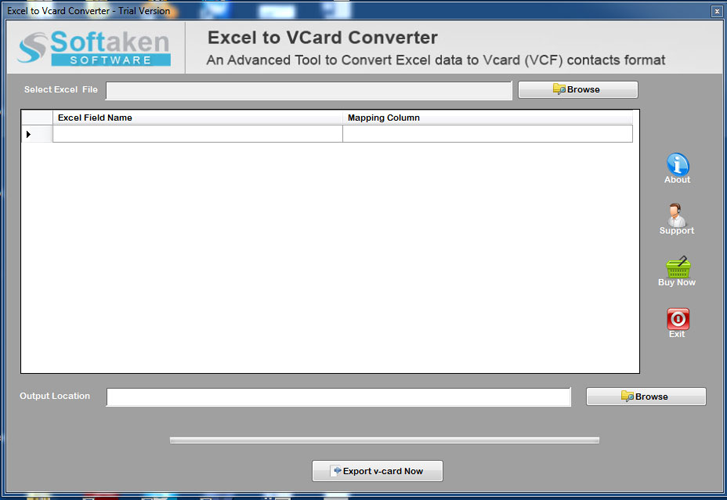
- Preview the Excel contacts and map the Excel contacts with vCard.
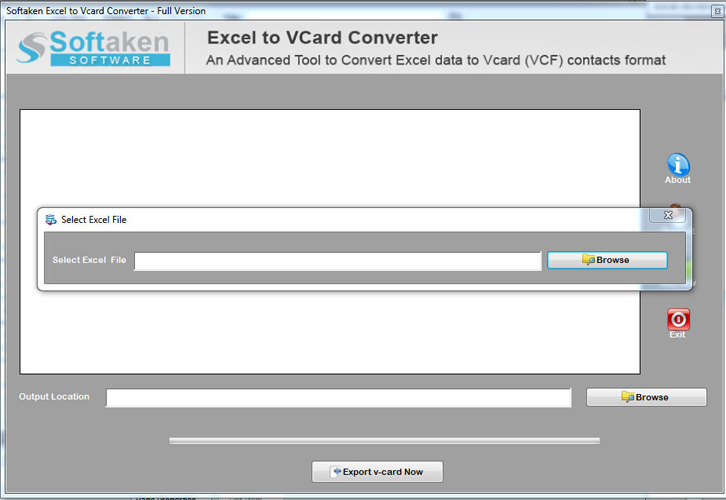
- Select the VCF format as the output location and specify the destination folder for storing the converted files.
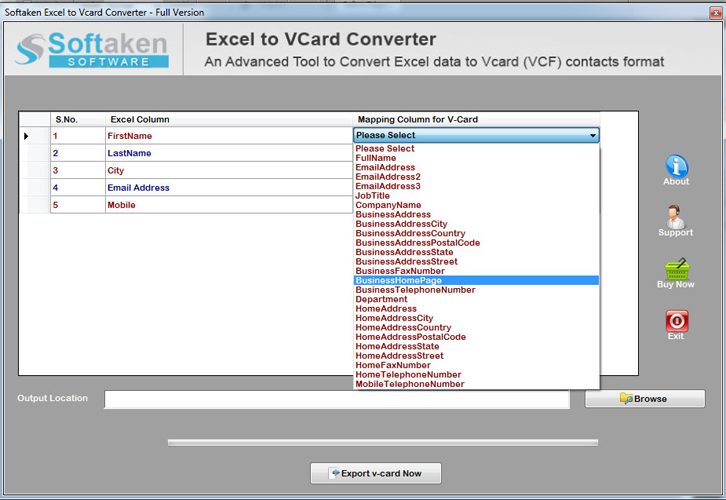
- Finally, hit the convert now button, which exports Excel contacts to VCF files.
Related Post:- Export Multiple Excel Contacts in a Single vCard File
Conclusion-
We have talked over both manual and tool methods for converting Excel to vCard in this blog. Use the Excel to vCard converter tool for a quick, secure, and simple procedure for converting.