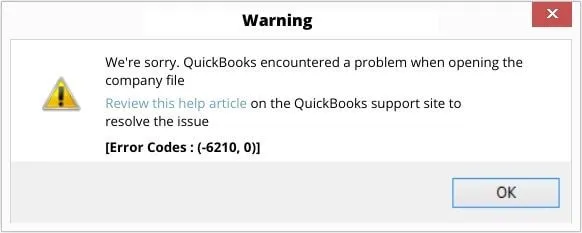
Encountering errors while using software across different operating systems is a common occurrence. QuickBooks Error 6210, 0 is one such error that can be frustrating, as it pops up when you try to open a company file in QuickBooks Desktop. This article will provide you with a detailed guide on how to fix QuickBooks Error 6210, 0, as well as the possible reasons behind its occurrence.
A brief review of QuickBooks Error 6210
The QuickBooks Error 6210, 0 occurs during the usage of QuickBooks in multi-user mode. The error is triggered when attempting to access the company file hosted on a workstation that is not configured as the server in the network. Upon encountering Error 6210, 0, an error message appears, indicating that the company file being accessed is not available, and QuickBooks Desktop closes abruptly.
What are the Causes of QuickBooks Error 6210?
This error can occur due to several reasons. Some of the common causes of this error are:
- The installation of QuickBooks Desktop and its extra features may not be fully completed.
- Errors can occur during the installation of QuickBooks on a Windows operating system.
- QuickBooks installation files, such as Network Data (.ND) and Transaction Log (.TLG) files, may have been infected by computer viruses or unintentionally deleted.
- QuickBooks is being prevented from communicating with other workstations on the network by the Windows Firewall or third-party firewalls.
- The user might not have the necessary administrator permissions on the server computer that holds the company file.
DIY Methods to Correct the QuickBooks Error 6210
Here are some steps you can take to resolve QuickBooks Error 6210:
Method 1: Use QuickBooks File Doctor
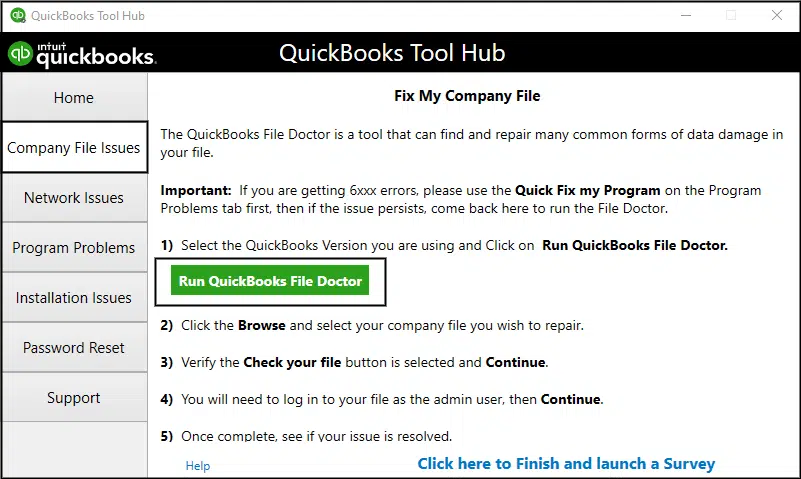
QuickBooks File Doctor is an important tool that can be used to fix such error when the error is caused by data damage in the company file. The tool can efficiently repair or restore damaged company files and also address network issues. QuickBooks File Doctor is well-known for resolving problems related to the -6000 series errors.
Method 2: Rename .ND & .TLG File using Single-User Mode
- Open Windows File Manager and go to the QuickBooks installation directory.
- Look for the corresponding company file with .ND and .TLG
- Right-click on these files and select the “rename” option.
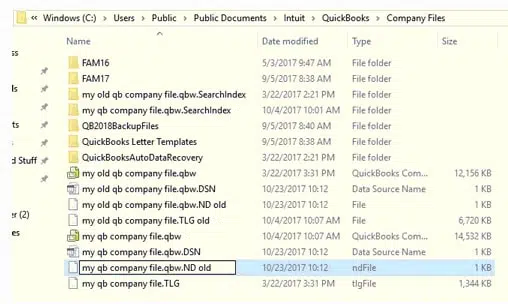
- Add .OLD at the end of the file extensions (e.g., .TLG.OLD).
- Repeat the previous step to rename the .ND file.
- Create a new folder on the desktop and move the QuickBooks file from the installation folder to this new folder.
- Launch QuickBooks and access the company file from the newly created folder.
Method 3: Use the locally installed sample company file.
- Open the no company open window on your desktop and click on open a sample file.
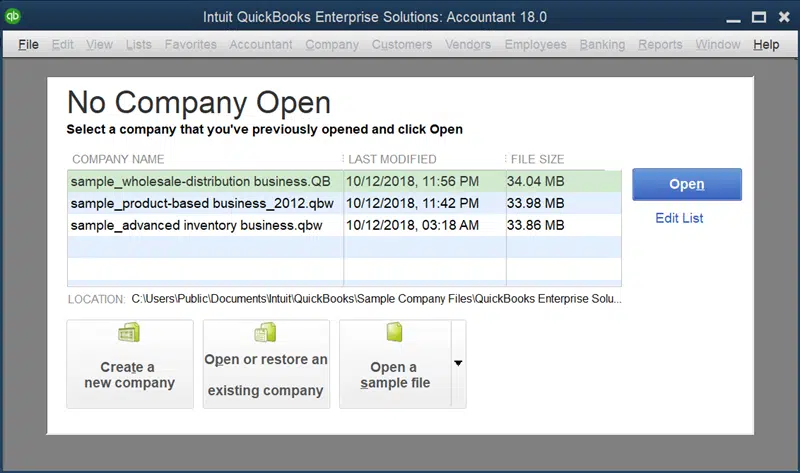
- If the sample file opens without any error, try opening it locally.
- If the sample file is still showing the same error message, then you may need to repair your QuickBooks installation.
Method 4: Reinstall QuickBooks using Clean Install Tool
- To begin, it is important to create a backup of the QuickBooks data.
- Next, download the QuickBooks Clean Install Tool.
- Once the tool is downloaded, open the QuickBooks_Clean_Install_Utility.exe file from the system’s downloads.
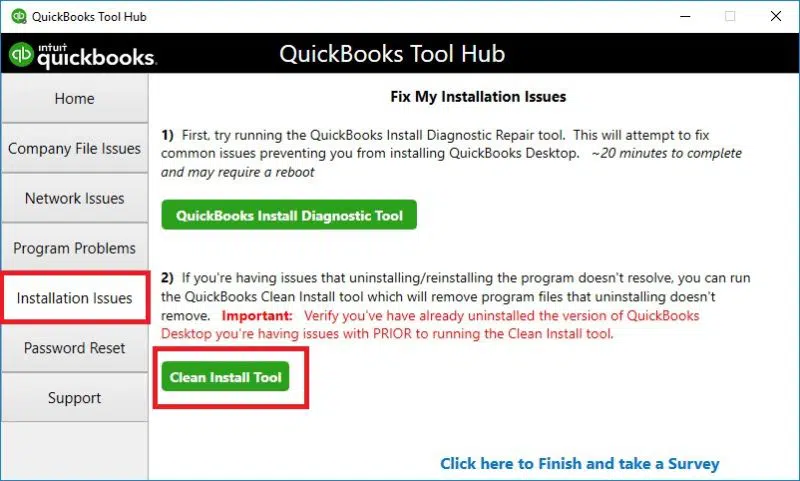
- After accepting the license agreement, select the appropriate version of QuickBooks and click OK to complete the process.
- Use the Clean Install Tool to reinstall QuickBooks.
Method 5: Disable antivirus and firewall
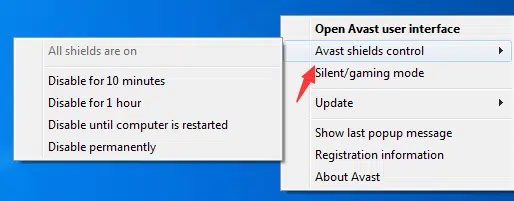
Sometimes, your antivirus or firewall software can block QuickBooks from accessing the company file. Temporarily disabling them may resolve the issue.
Method 6: Copy the company file to your local computer
If the company file is located on a different computer, try copying it to your local computer and then opening it.
Summing Up..!
This article presents solutions to resolve QuickBooks error 6210. If the error persists even after following the aforementioned methods while accessing the QuickBooks company file in Single-User or Multi-User mode, you can contact our QuickBooks error support experts at 1-800-615-2347 for assistance. Our team will provide immediate assistance in resolving this error.